


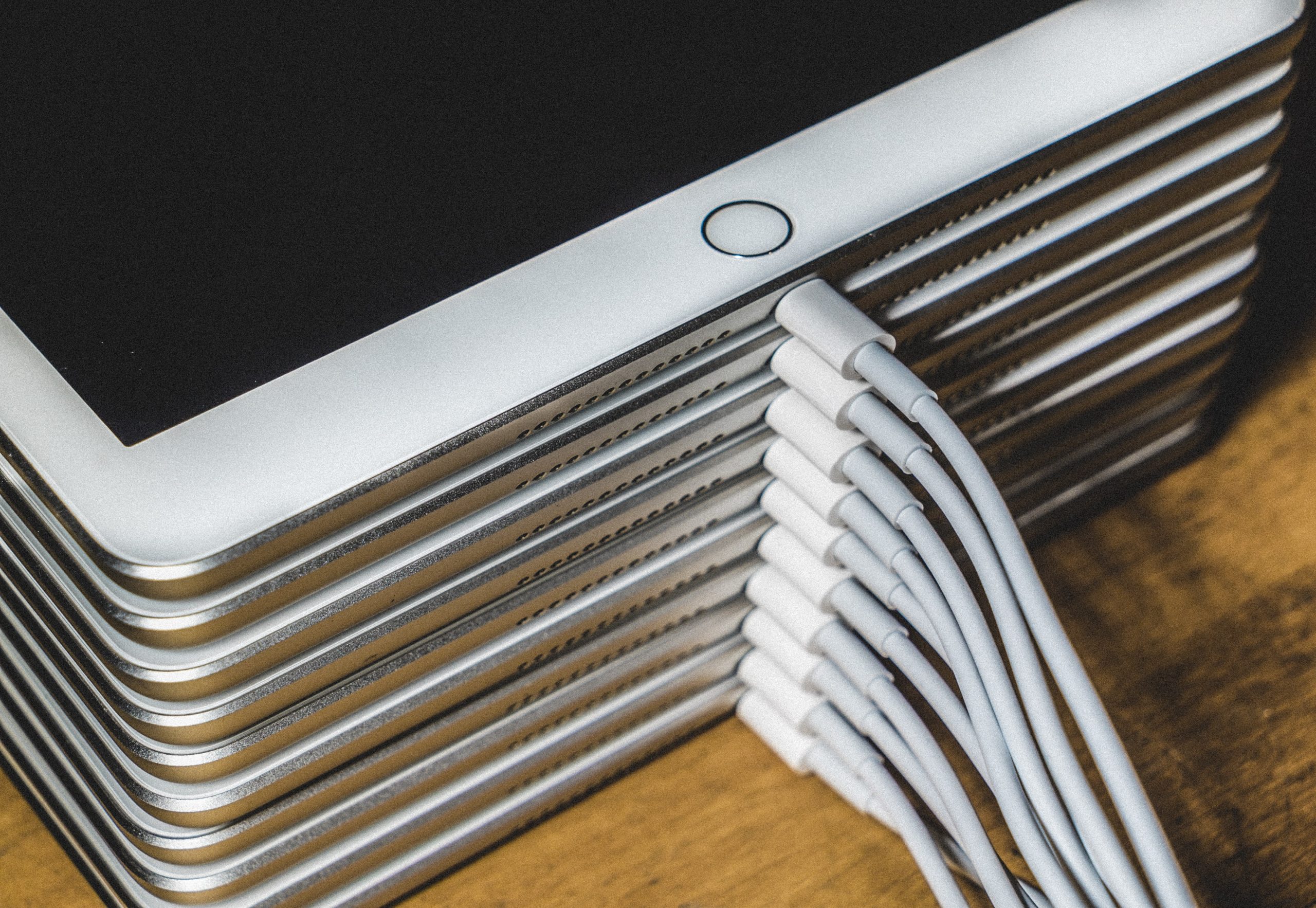
Your iPad is a powerful companion for work, creativity, and entertainment, but no battery lasts forever. Whether you own the latest iPad Pro or a trusty older model, the right settings can stretch every charge significantly further. Here are 30 proven tips to save battery on your iPad and protect its long-term health.
Table of contents
- 1. Turn on or automate Low Power Mode
- 2. Check battery-draining apps
- 3. Turn off unnecessary location services
- 4. Use auto-brightness
- 5. Activate Dark Mode
- 6. Reduce transition effects
- 7. Prevent alerts from waking your iPad
- 8. Turn off Bluetooth and Wi-Fi when idle
- 9. Turn off cellular data
- 10. Disable AirDrop
- 11. Turn off Background App Refresh
- 12. Turn on Reduce White Point
- 13. Adjust auto-lock
- 14. Limit notifications
- 15. Turn off Fetch New Data in Mail
- 16. Turn off Raise to Wake
- 17. Pause iCloud Photos sync
- 18. Turn off Equalizer
- 19. Disable Handoff
- 20. Disable automatic downloads and app updates
- 21. Limit widgets
- 22. Use Safari instead of Chrome
- 23. Activate Airplane Mode in low signal areas
- 24. Disable diagnostics sharing
- 25. Avoid extreme temperatures
- 26. Remove the case while charging
- 27. Update to the latest iPadOS
- 28. Restart your iPad
- 29. Complete a factory reset
- 30. Power off at least once a week
- Final words
- FAQ
1. Turn on or automate Low Power Mode
Low Power Mode reduces background activity, mail fetching, and certain visual effects to squeeze more life out of every charge. On iPad Pro models with ProMotion displays, it also caps the refresh rate at 60 Hz.
Enable it in Settings > Battery > Low Power Mode, or add a toggle to Control Center for quick access. For hands-free savings, open the Shortcuts app, create an automation triggered by a battery level such as 50%, and set it to activate Low Power Mode automatically.
2. Check battery-draining apps
Head to Settings > Battery to see which apps consume the most power over the past 24 hours or 10 days. iPadOS 18 and later also surfaces Battery Insights here, flagging unusual background activity. If an app is burning through battery in the background, restrict its permissions or remove it altogether.
3. Turn off unnecessary location services
Location tracking is one of the most persistent background drains on any iPad. Apps that continuously ping your GPS consume power even when you are not actively using them.
Go to Settings > Privacy & Security > Location Services. Tap each app and choose Never or While Using the App for anything that does not genuinely need your location. Also scroll to System Services at the bottom and disable non-essential system-level location features.
4. Use auto-brightness
Auto-brightness adjusts your screen based on ambient light, dimming it in darker rooms and brightening it outdoors. The display is the largest power draw on any iPad, so this single setting can noticeably extend battery life.
To enable it, go to Settings > Accessibility > Display & Text Size and toggle Auto-Brightness on.
5. Activate Dark Mode
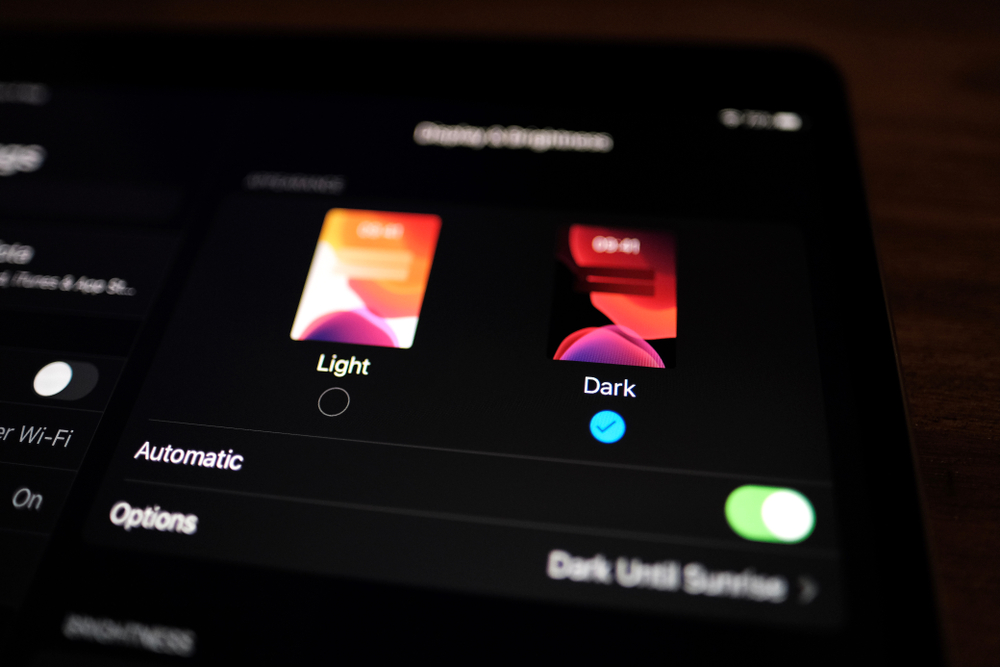
Dark Mode replaces bright white backgrounds with darker tones, reducing overall screen power. On iPad Pro models with OLED displays, the savings are especially pronounced because dark pixels draw almost no power.
To activate Dark Mode, go to Settings > Display & Brightness and select Dark. You can also add a Dark Mode toggle to Control Center, or schedule it automatically under Settings > Display & Brightness > Options.
6. Reduce transition effects
Animations and parallax effects require extra GPU processing. Go to Settings > Accessibility > Motion and toggle on Reduce Motion. On iPad Pro with ProMotion, you can also enable Limit Frame Rate in the same menu to cap the display at 60 Hz.
7. Prevent alerts from waking your iPad
Every push notification wakes your iPad's screen and processor, and those small jolts add up throughout the day. Go to Settings > Notifications, review each app, and disable alerts for anything non-essential. Use Scheduled Summary to batch notifications into a digest delivered once or twice a day.
8. Turn off Bluetooth and Wi-Fi when idle
When Bluetooth and Wi-Fi are active, your iPad continuously scans for nearby devices and networks, which draws power even when nothing is connected. For a full shutdown, go to Settings > Bluetooth and Settings > Wi-Fi and toggle each off. Also disable Ask to Join Networks under Wi-Fi settings to prevent constant scanning.
9. Turn off cellular data
Cellular radios consume considerably more power than Wi-Fi. If your iPad has a cellular plan and you are near a Wi-Fi network, switching off cellular data can save meaningful battery. Go to Settings > Cellular Data and toggle the switch off. If your iPad supports 5G, switching to 5G Auto under Settings > Cellular Data > Data Mode lets the device fall back to LTE when 5G speeds are not needed.
10. Disable AirDrop
AirDrop relies on both Bluetooth and Wi-Fi to discover nearby devices. Even when you are not sharing anything, keeping AirDrop set to "Everyone" means your iPad is constantly listening for connections. Go to Settings > General > AirDrop and select Receiving Off or Contacts Only.
11. Turn off Background App Refresh
Background App Refresh allows apps to update their content even when you are not using them. It is one of the biggest silent battery drains on any iPad. Go to Settings > General > Background App Refresh and turn it off entirely, or selectively disable it for streaming, social media, and news apps while keeping it on for messaging or navigation.
12. Turn on Reduce White Point
Reduce White Point lowers the intensity of bright colors on screen, making the display dimmer than the standard brightness slider alone allows. Go to Settings > Accessibility > Display & Text Size > Reduce White Point and adjust the slider to your preferred level.
13. Adjust auto-lock
The display is the biggest battery consumer on any iPad. Setting auto-lock to a shorter interval saves a surprising amount of power over the course of a day. Go to Settings > Display & Brightness > Auto-Lock and choose the shortest duration that suits your workflow. Dropping from five minutes to two minutes can add over half an hour of total battery life per charge.
14. Limit notifications
Each notification lights up the screen and wakes the processor. Go to Settings > Notifications, tap any app, and adjust its alert style or turn off notifications entirely. For apps you want to hear from occasionally, choose Deliver Quietly so alerts go straight to Notification Center without waking the screen.
15. Turn off Fetch New Data in Mail
Push email keeps a persistent background connection that wakes your iPad every time a new message arrives. Go to Settings > Apps > Mail > Mail Accounts > Fetch New Data and toggle Push off. Select Manually under the Fetch schedule for maximum savings, or Hourly if you still want periodic updates.
16. Turn off Raise to Wake
Raise to Wake lights up your iPad screen every time you pick it up or shift it. Go to Settings > Display & Brightness and toggle off Raise to Wake. You can still wake your iPad by pressing the power button or tapping the screen.
17. Pause iCloud Photos sync
iCloud Photos continuously syncs your entire photo library in the background, consuming both power and data. Go to Settings > [Your Name] > iCloud > Photos and turn off Sync this iPad. You can always upload photos manually or over Wi-Fi when battery is not a concern.
18. Turn off Equalizer
The Music app's equalizer applies real-time audio processing that requires extra CPU cycles. Go to Settings > Apps > Music > EQ and select Off.
19. Disable Handoff
Handoff lets you start a task on one Apple device and continue it on another. While convenient, it requires a constant Bluetooth background connection. Go to Settings > General > AirPlay & Handoff and toggle off Handoff.
20. Disable automatic downloads and app updates
Automatic downloads and app updates run in the background and consume both data and battery. Go to Settings > App Store and toggle off App Downloads and App Updates under Automatic Downloads. Update apps manually when connected to Wi-Fi and a charger.
21. Limit widgets
Widgets refresh periodically to display up-to-date information, and each refresh consumes a small amount of power. Remove any widgets you do not regularly check by long pressing them and choosing Remove Widget. Keep only widgets that provide genuinely useful at-a-glance information.
22. Use Safari instead of Chrome
Safari is optimized specifically for Apple hardware and consistently uses less power than third-party browsers on iPadOS. Google Chrome is known for higher memory and battery consumption. If battery life is a priority, use Safari as your default browser.
23. Activate Airplane Mode in low signal areas
When cellular signal is weak, your iPad works harder to maintain a connection, draining the battery rapidly. Swipe down from the top-right corner to open Control Center and tap the airplane icon. You can then re-enable Wi-Fi separately if a local network is available.

24. Disable diagnostics sharing
Your iPad periodically collects and transmits diagnostics data to Apple and third-party developers. Go to Settings > Privacy & Security > Analytics & Improvements and toggle off Share iPad Analytics.
25. Avoid extreme temperatures
Lithium-ion batteries are sensitive to temperature extremes. Prolonged heat exposure can permanently reduce maximum capacity, while cold causes temporary drops in available charge. Apple recommends keeping your iPad in a temperature range of 32 to 95 degrees Fahrenheit (0 to 35 degrees Celsius) for optimal performance.
26. Remove the case while charging
Certain cases trap heat during charging, which can degrade battery health over time. If your iPad gets warm while plugged in, remove the case to allow heat dissipation. Also consider enabling the 80% Charge Limit feature in Settings > Battery > Battery Health & Charging on supported models to reduce long-term wear.
27. Update to the latest iPadOS
Apple regularly ships battery optimizations and power management improvements in iPadOS updates. Running an outdated version means missing out on efficiency gains that directly affect daily battery life. Note that battery life may dip temporarily after a major update while background indexing completes. Check for updates in Settings > General > Software Update.
28. Restart your iPad
A restart clears cached processes, stops runaway background tasks, and resets memory allocations. If your iPad's battery seems to be draining faster than usual, a quick reboot often resolves the issue without any other changes.
29. Complete a factory reset
If none of the above tips solve persistent battery drain, a factory reset can eliminate corrupted settings or rogue processes. Back up your data first, then go to Settings > General > Transfer or Reset iPad and select Erase All Content and Settings. After restoring from a backup, monitor battery usage for a day or two to confirm the issue is resolved.
30. Power off at least once a week
Powering down your iPad completely at least once a week gives the system a chance to clear temporary files and reset background processes that accumulate over time. It also helps recalibrate the battery gauge for more accurate charge readings.
Learn more: How Long Do iPads Last?
Final words
These 30 tips cover everything from quick settings tweaks to long-term battery health habits. Start with the highest-impact changes: Low Power Mode, auto-brightness, Background App Refresh, and auto-lock. Work your way through the rest as needed. If you are thinking about upgrading to a device with a healthier battery, see our guide to the best refurbished iPads or browse current deals on refurbished iPads starting from $52.
FAQ
Last updated: May 28, 2026 · First published: Nov 12, 2024