



That sinking feeling when you press the power button and your Mac stays completely dark is frustrating, but it is rarely a sign of permanent damage. Most startup failures come down to a drained battery, a minor firmware glitch, or a software conflict, all of which have clear solutions. This guide walks you through 10 fixes in order, starting with the simplest checks and building up to more advanced tools like Apple Diagnostics and macOS Recovery. It covers all current Mac hardware: Apple Silicon models (M1, M2, M3, M4), Intel Macs with a T2 chip, and older Intel Macs without one.
Table of contents
- 1. Check the power connection
- 2. Force a restart
- 3. Boot in Safe Mode
- 4. Check the display
- 5. Reset the SMC (Intel Macs only)
- 6. Reset NVRAM (Intel Macs only)
- 7. Reinstall macOS via Recovery
- 8. Run Apple Diagnostics
- 9. Contact Apple Support
- 10. Consider a refurbished Mac
1. Check the power connection

Power problems cause more "dead Mac" situations than anything else, and they are the easiest to rule out. Before assuming the worst, run through each of these checks:
- Inspect the cable and adapter: Look for fraying, kinks, or scorch marks. A visibly damaged MagSafe or USB-C cable can cut power entirely. If you have a spare, swap it in.
- Test the outlet: Plug a lamp or phone charger into the same wall socket to confirm it is live. A tripped circuit breaker is a surprisingly common culprit.
- Check the charging indicator: On MacBooks with MagSafe, the LED should glow amber (charging) or green (charged). On USB-C models, connect a charger and wait up to 10 minutes before attempting to power on. A fully drained battery sometimes needs a short recharge before the Mac will boot.
- Try a different USB-C port: On MacBooks with multiple USB-C ports, plug the charger into the opposite side. Charging behavior on USB-C models can be finicky if one port has a marginal connection. Rotating the connector 180 degrees in the port is also worth trying.
- Disconnect all accessories: Unplug every external drive, hub, monitor, and peripheral. A faulty accessory can interfere with startup. If the Mac powers on once everything is disconnected, reconnect accessories one at a time to find the offending device.
2. Force a restart
Sometimes the Mac is technically on but locked in a frozen state that makes it appear dead. A force restart clears temporary memory issues and lets the system start fresh:
- Press and hold the power button for about 10 seconds until the Mac shuts down completely.
- Wait 5 seconds.
- Press the power button once to restart.
If the Mac shows signs of life (a brief fan spin, a flash of backlight) but does not complete startup, move on to Step 3.
3. Boot in Safe Mode
Safe Mode starts macOS with the minimum set of system software, disabling third-party extensions, login items, and non-essential startup processes. If your Mac boots successfully in Safe Mode, the problem is almost certainly a software conflict or a corrupted login item rather than hardware failure.
For Apple Silicon Macs (M1, M2, M3, M4):
- Shut down your Mac completely.
- Press and hold the power button until "Loading startup options" appears.
- Select your startup disk.
- Hold the Shift key, then click Continue in Safe Mode.
For Intel-based Macs:
- Turn on or restart your Mac.
- Immediately press and hold the Shift key.
- Release Shift when the login window appears. "Safe Boot" will appear in the menu bar.
If your Mac boots in Safe Mode, try the following before restarting normally: remove any apps you installed recently, check for macOS software updates in System Settings, and delete any third-party kernel extensions or security tools that run at startup. Then restart without Safe Mode to see if the problem is resolved.
4. Check the display
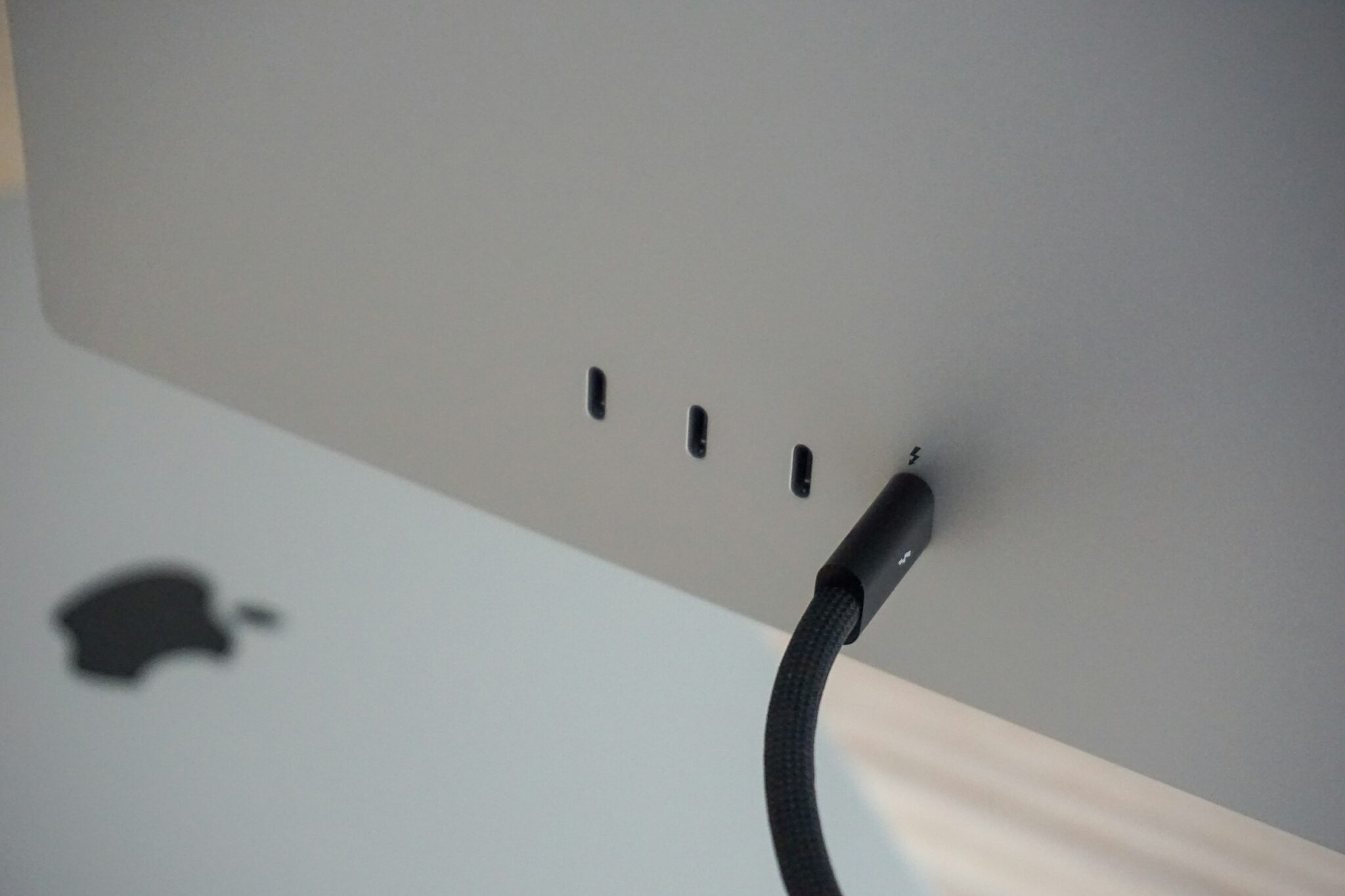
Your Mac may actually be running normally while the display stays dark. Before concluding there is a startup failure, rule out a display issue:
- Brightness: Press the brightness-up key (or F2) several times. It is easy to accidentally set brightness to zero.
- External monitor test: Connect a monitor via HDMI or DisplayPort. If the external screen shows the desktop, the Mac itself is working and the built-in display is the problem.
- Cable check: If you use a desktop Mac with a separate monitor, reseat the cable at both ends and try a different port or cable.
A blank internal display on a MacBook usually points to a failed backlight or LCD panel. At that point, an Apple Authorized Service Provider or an Apple Store Genius Bar appointment is the right next step.
5. Reset the SMC (Intel Macs only)
The System Management Controller (SMC) governs power delivery, battery charging, fan speed, and sleep behavior on Intel Macs. When its internal state becomes inconsistent, often after a complete battery drain or an unusual power event, the Mac may refuse to start or charge. Resetting it clears that state.
Apple Silicon Macs do not have a separate SMC. Power management is built directly into the M-series chip and resets automatically. If you have an M1, M2, M3, or M4 Mac, skip to Step 6.
For Intel Macs with a T2 chip (most Intel Macs from 2018 onward):
- Shut down your Mac.
- Press and hold the left Control key, the left Option key, and the right Shift key for 7 seconds.
- While still holding those three keys, press and hold the power button for another 7 seconds.
- Release all keys and wait a few seconds.
- Press the power button to turn on your Mac.
For Intel MacBooks without a T2 chip (non-removable battery, pre-2018):
- Shut down your Mac and connect the power adapter.
- Press Shift-Control-Option (all on the left side of the keyboard) and the power button simultaneously, holding them for 10 seconds.
- Release all keys.
- Press the power button to start your Mac.
For Intel Mac desktops (iMac, Mac mini, Mac Pro):
- Shut down and unplug the power cord.
- Wait 15 seconds.
- Reconnect the power cord and wait 5 seconds.
- Press the power button to start.
After the SMC reset, try restarting normally. If the problem persists, continue to Step 6.
6. Reset NVRAM (Intel Macs only)
NVRAM (Non-Volatile Random-Access Memory) stores settings your Mac needs to access quickly at startup: display resolution, speaker volume, startup disk selection, and time zone. Corrupted NVRAM entries can sometimes prevent a clean boot.
Apple Silicon Macs automatically test and reset NVRAM at every startup. There is no keyboard shortcut for this on M-series hardware. If you have an Apple Silicon Mac, proceed directly to Step 7.
For Intel-based Macs (with or without a T2 chip):
- Shut down your Mac.
- Press the power button, then immediately hold Option, Command, P, and R together.
- Keep holding all four keys for about 20 seconds. On older Intel Macs, the startup chime will sound twice. On newer Intel Macs, the Apple logo will appear and disappear twice.
- Release the keys and allow the Mac to continue starting up.
After the reset, check your system settings, as sound volume, display resolution, and startup disk selection may have reverted to defaults.
7. Reinstall macOS via Recovery
If your Mac still will not start, the macOS installation may be corrupted. macOS Recovery lets you repair the startup disk or reinstall the operating system without erasing your data.
Entering Recovery mode:
- Apple Silicon Macs: Shut down, then press and hold the power button until "Loading startup options" appears. Click Options, then click Continue.
- Intel Macs: Restart while holding Command + R. For Internet Recovery (downloads the latest macOS from Apple), hold Option + Command + R instead.
Once inside Recovery:
- (Optional) Repair the disk first: Open Disk Utility, select your startup disk from the sidebar, and click First Aid. This checks for and repairs file system errors. If First Aid reports errors it cannot fix, a full reinstall is the next step.
- Reinstall macOS: Choose Reinstall macOS from the Recovery menu and follow the on-screen prompts. You will need an internet connection to download the installer. This process replaces system files without touching your personal data or applications.
If you recently updated macOS and the Mac became unresponsive afterward, a reinstall via Recovery almost always resolves the issue.
8. Run Apple Diagnostics
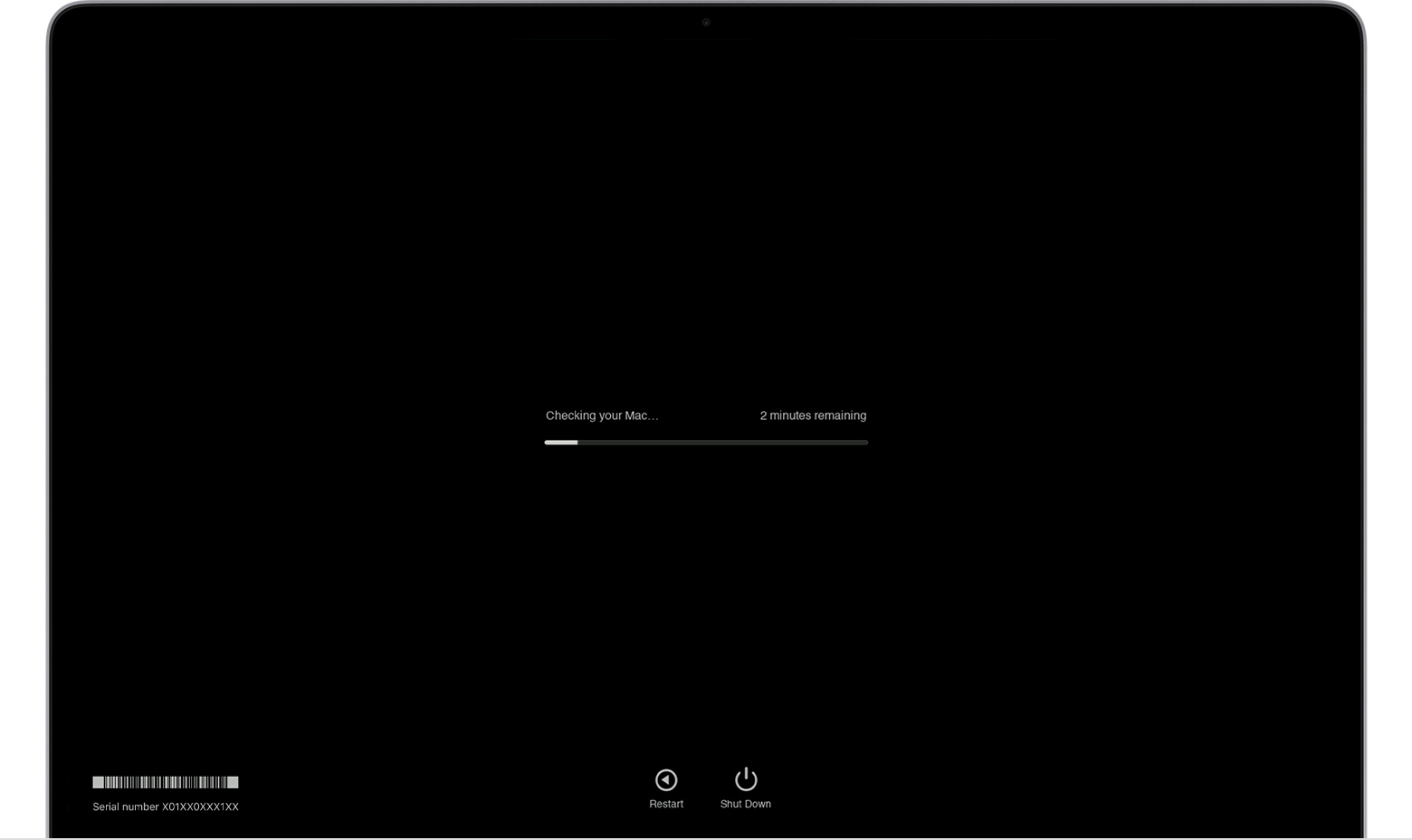
Apple Diagnostics is a built-in testing tool that checks your Mac's memory, storage, battery, and other hardware components. Running it helps determine whether the problem is a software issue or a hardware failure before you escalate to Apple Support.
For Apple Silicon Macs:
- Shut down your Mac and disconnect all accessories except power.
- Press and hold the power button until "Loading startup options" appears.
- Press Command + D.
- Follow the on-screen instructions.
For Intel-based Macs:
- Shut down your Mac and disconnect all accessories except power, keyboard, mouse, and display.
- Turn on your Mac and immediately hold the D key.
- Release D when the Apple Diagnostics screen appears.
- Follow the on-screen instructions.
The test takes a few minutes and displays results with reference codes. Write down any codes that appear: codes beginning with "PPT" indicate battery issues, "VDH" relates to storage, and "ADP" points to power adapter problems. Share these codes with Apple Support or an authorized service provider for a faster diagnosis.
9. Contact Apple Support
If you have worked through all the steps above and your Mac still will not start, the problem is likely a hardware fault that requires professional service. Apple Support can run remote diagnostics, advise on repair options, and tell you whether your Mac qualifies for any repair programs.
Ways to reach Apple Support:
- Apple Support website: Go to support.apple.com to chat with a specialist, schedule a call, or book a repair.
- Apple Support app: Available on any iPhone or iPad if you cannot use your Mac.
- Apple Store Genius Bar: Book an appointment for an in-person assessment.
- Apple Authorized Service Provider: Find one at locate.apple.com if there is no Apple Store nearby.
Before you contact support, gather:
- Your Mac's serial number (printed on the bottom of the machine or visible in System Information on another device).
- Any Apple Diagnostics reference codes you recorded in Step 8.
- A clear description of when the problem started and what you have already tried.
If your Mac is still under the standard one-year warranty or AppleCare+, in-person repairs are often covered at no cost.
10. Consider a refurbished Mac
If repair costs outweigh the value of your current machine, or if it is simply too old to justify the expense, a refurbished Mac is worth considering. Refurbished models from Apple and certified retailers go through thorough testing, component replacement where needed, and quality verification before resale. They also come with a warranty, so you are not starting from zero on coverage.
Refurbished MacBooks currently start from around $87, making them a practical path to an upgrade without the full new-device price. The savings compared to buying new can be substantial: 20 to 40 percent on recent Apple Silicon models, and even more on slightly older hardware.
Here is why many people choose refurbished over repair:
- Lower cost: A refurbished MacBook with Apple Silicon often costs less than a major logic board repair on an older Intel model.
- Tested condition: Every unit passes functional tests before listing, and defective parts are replaced.
- Warranty included: Most certified sellers include at least a 90-day warranty, with Apple's own refurbished store offering a full one-year limited warranty.
- Sustainable choice: Choosing a certified refurbished device extends the product's life and reduces electronic waste.
To compare prices across Apple, Amazon Renewed, Back Market, and other sellers in real time, use RefurbMe. You can filter by model, storage, condition, and price, and set up alerts so you are notified when a specific configuration becomes available.
For instance, you can browse all current refurbished MacBook deals right here:
Last updated: May 25, 2026 · First published: Oct 8, 2024