


The iPhone flashlight (also called the torch on UK and Australian devices) lives in the Control Center on every iPhone model, from the original SE and iPhone 8 all the way to the iPhone 16 Pro Max. On Face ID iPhones, swipe down from the upper-right corner to reach it instantly. On older iPhones with a Home button, swipe up from the bottom edge. That is the quickest answer, but Apple actually provides six different ways to toggle the light, and iOS 18 added fine-grained control over beam width and brightness. This guide covers every method available in 2026, with step-by-step instructions for each.
Table of contents
- Through the Control Center
- From the Lock Screen
- Via Siri
- Using the Action Button
- Using Back Tap
- Adjusting flashlight brightness and beam
- A few things to remember
- Frequently asked questions
- Conclusion
Through the Control Center
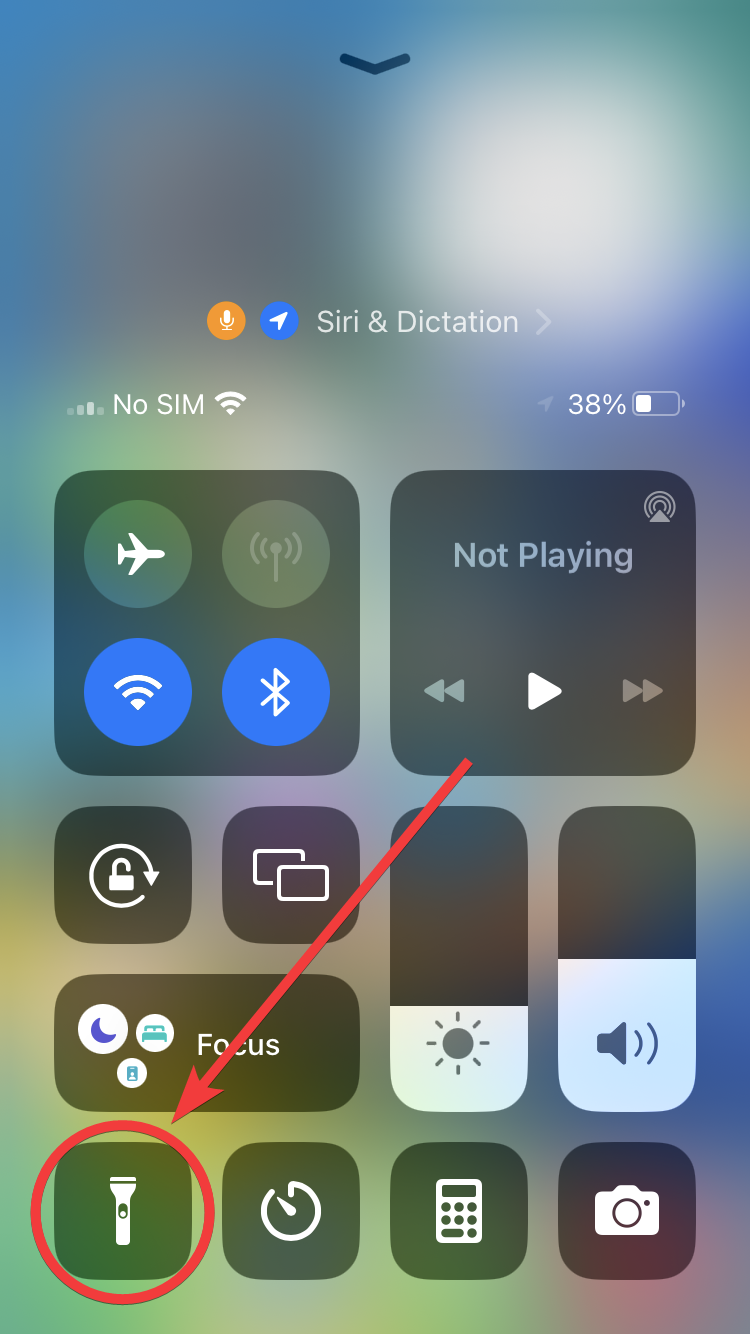
The Control Center is the most universal way to toggle the flashlight (or torch) on any iPhone running iOS 7 or later. Every current iPhone model supports this method. The gesture to open Control Center depends on whether your iPhone has Face ID or a Home button.
On iPhones with Face ID (iPhone X, XS, XR, 11, 12, 13, 14, 15, 16 series, and iPhone SE 4th generation):
- Swipe down from the upper-right corner of the screen.
- Tap the flashlight icon. A white highlight appears around the icon when the flashlight is active.
- Tap the icon again to turn it off.
On iPhones with a Home button (iPhone SE 1st and 2nd generation, iPhone 8 and earlier):
- Swipe up from the bottom edge of the screen.
- Tap the flashlight icon in the bottom-left area of the Control Center.
- Tap it again to switch it off.
If the flashlight icon is missing from your Control Center, you can add it. Go to Settings > Control Center, then tap the plus sign next to Flashlight in the list of available controls. On iOS 18 and later, you can also long-press anywhere in Control Center, tap Add a Control, and search for Flashlight.
On iOS 18, Apple redesigned the Control Center with multiple pages. If you use a custom layout and the flashlight is not on the first page, swipe up or down within Control Center to find it, or move it to the main page by long-pressing in edit mode and dragging the tile to your preferred position.
From the Lock Screen
On iPhones with Face ID, you can activate the flashlight without unlocking your device or opening Control Center:
- Wake your iPhone by tapping the screen or pressing the side button.
- Press and hold the flashlight icon in the bottom-left corner of the Lock Screen until you feel a haptic vibration.
- The flashlight turns on immediately.
- To turn it off, press and hold the icon again.
Starting with iOS 18, you can also customize or remove the Lock Screen flashlight button entirely. Long-press the Lock Screen, tap Customize > Lock Screen, then tap the minus icon on the flashlight button to remove it or replace it with a different control such as a Translate button, Stopwatch, or even a shortcut to any app.
This is particularly useful if you often trigger the flashlight by accident when taking your phone out of a pocket. Removing the Lock Screen shortcut does not disable the flashlight itself, which remains fully accessible through Control Center.
Via Siri
If your hands are full or you prefer voice commands, Siri makes toggling the flashlight effortless. Activate Siri by:
- Saying "Siri" or "Hey Siri" (depending on your settings)
- Pressing and holding the side button (Face ID models) or Home button (Touch ID models)
Then say one of the following:
- "Turn on my flashlight"
- "Turn off the flashlight"
Siri executes the command instantly. As a fun alternative, you can also say "Lumos" to turn on the flashlight and "Nox" to turn it off, a nod to the Harry Potter spells.
Siri works on-device for flashlight commands, so it functions even without an internet connection.
Using the Action Button
The Action Button is a customizable physical button on the left edge of iPhone 15 Pro, iPhone 15 Pro Max, and all iPhone 16 models (including the standard iPhone 16, iPhone 16 Plus, iPhone 16 Pro, and iPhone 16 Pro Max). It can be assigned to toggle the flashlight with a single press:
- Open Settings > Action Button.
- Swipe through the options until you reach the Flashlight icon.
- Exit Settings.
Now simply press and hold the Action Button to turn the flashlight on or off. This method works even from the Lock Screen and is especially convenient when you are wearing gloves or need one-handed access.
On the iPhone 16 lineup, you also get the Camera Control button on the right edge of the device. While Camera Control is primarily designed for photo and video capture, you can combine it with Shortcuts to create an indirect flashlight trigger if the Action Button is already assigned to another function.
Using Back Tap
Back Tap is an accessibility feature introduced in iOS 14 that lets you trigger actions by tapping the back of your iPhone:
- Go to Settings > Accessibility > Touch > Back Tap.
- Choose Double Tap or Triple Tap.
- Select Flashlight (you may need to create a Shortcut that toggles the flashlight first, then assign that shortcut here).
Once configured, a quick double or triple tap on the back of your iPhone toggles the flashlight without opening any menu. Back Tap works on iPhone 8 and later running iOS 14 or newer.
A simple Shortcuts automation for this: open the Shortcuts app, tap the plus icon, add the Set Torch action, set it to toggle, then name the shortcut "Flashlight Toggle." Once saved, that shortcut appears in the Back Tap list under Accessibility.
Adjusting flashlight brightness and beam
Beyond a simple on/off toggle, Apple gives you fine control over flashlight intensity:
Brightness slider (all iPhones):
- Open Control Center.
- Press and hold the flashlight icon until a brightness slider appears.
- Drag the slider up for maximum brightness or down to dim the light.
The slider has four preset steps on most iPhones, ranging from a gentle glow useful for reading in bed without disturbing anyone, up to full intensity suitable for outdoor navigation.
Beam width and length (Dynamic Island models with iOS 18+):
On iPhone 14 Pro and later (any model with the Dynamic Island pill), iOS 18 introduced an interactive flashlight interface. This feature is not available on older iPhones or on the iPhone 14 standard and iPhone 14 Plus, which use a notch rather than the Dynamic Island.
- Turn on the flashlight using any method.
- Tap the Dynamic Island at the top of the screen.
- Touch and hold the light icon, then drag left or right to widen or narrow the beam, and up or down to adjust brightness.
This feature uses the adaptive TrueFlash LED hardware found in Pro and later models. A wide beam illuminates a large area evenly, while a narrow beam concentrates light and carries farther in the dark, functioning like a handheld spotlight. The beam width control is purely a software feature layered over the same physical LED, so it works on any iPhone 14 Pro or later running iOS 18.
A few things to remember
Battery conservation
The flashlight draws power from your battery, and extended use can drain it faster than you might expect. If you are away from a charger, limit flashlight sessions and keep an eye on your battery percentage. On newer iPhones, using a dimmer brightness setting significantly reduces power consumption. At full brightness, the LED can consume a noticeable portion of your available charge within an hour of continuous use.
Heat emission
Prolonged flashlight use causes the iPhone to generate heat. If your device feels warm, give the flashlight a break. Extended heat exposure can degrade battery health over time. If you notice your iPhone throttling performance or displaying a temperature warning, turn the flashlight off and let the device cool in a shaded spot.
Flashlight etiquette
Be mindful of your surroundings. Avoid shining the flashlight directly at people's faces, and turn it off in theaters, during performances, or in any setting where a bright light would be disruptive.
Alternative uses
The flashlight doubles as a practical photography tool for illuminating subjects in dim conditions. In emergency situations, you can use it as a signal or beacon. The strobe effect is available through some third-party apps if you need specialized flashing patterns. Several apps on the App Store also use the camera flash in combination with the microphone to create visual indicators for hearing-impaired users, turning the flashlight into an accessibility tool in its own right.
Frequently asked questions
Conclusion
Apple provides at least six different ways to toggle your iPhone flashlight or torch: from Control Center and the Lock Screen to Siri, the Action Button, and Back Tap. Every iPhone model from the original SE and iPhone 8 onward supports the Control Center method, while iOS 18 adds advanced beam width controls through the Dynamic Island on Pro models. Whichever method fits your routine, the flashlight is always just a gesture or voice command away.
If you are looking for a new iPhone, consider a refurbished model. Refurbished iPhones work the same as brand-new devices at substantial discounts and always include a warranty. You can also learn more about how to use your iPhone with our beginner's guide, or explore the best iPhone accessories to get more from your device. Compare all models on RefurbMe in real time:
Last updated: May 28, 2026 · First published: Sep 8, 2023